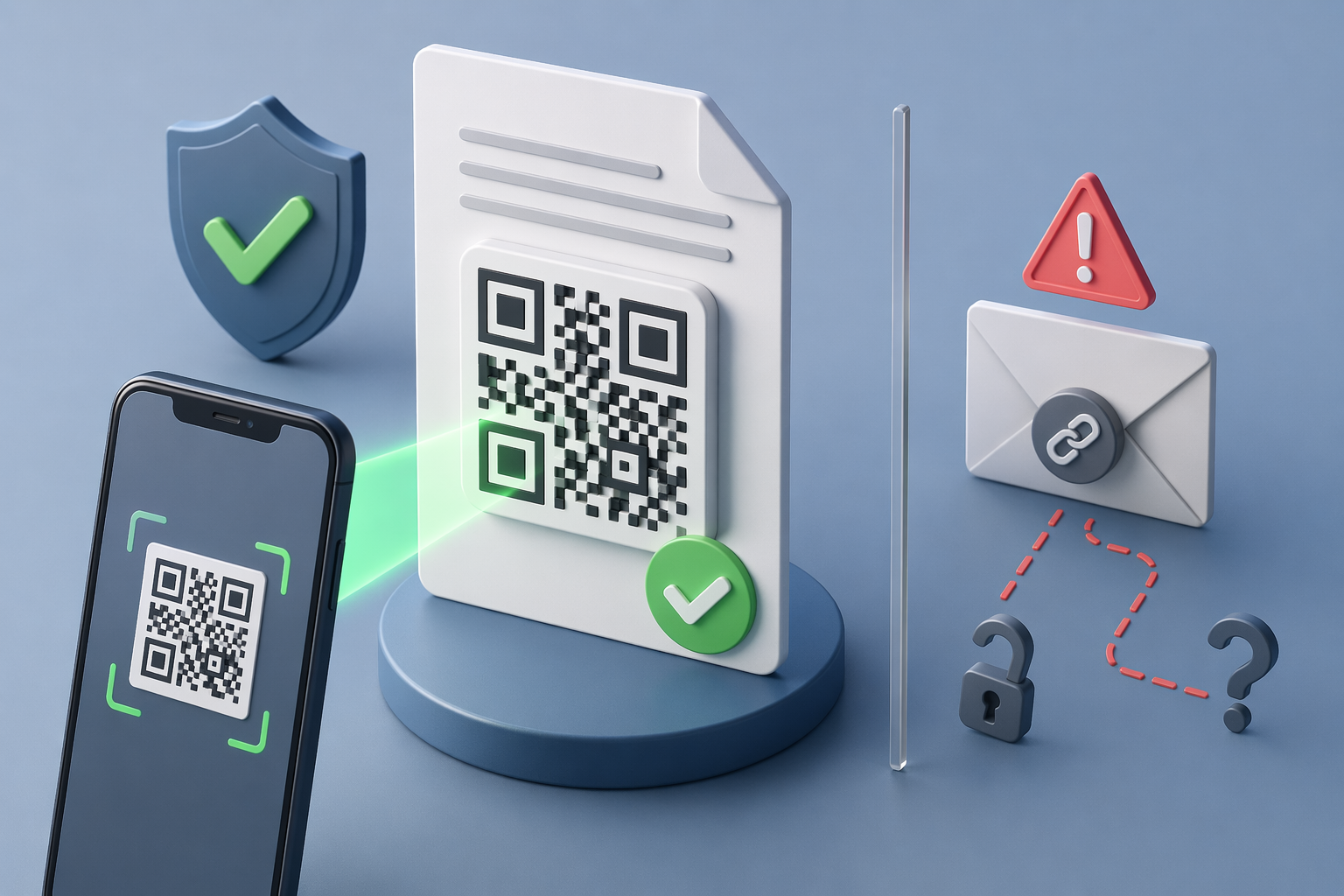
You have been handed a certificate, a bank statement, or an offer letter with a QR code printed on it, and you need to know it is real. The good news: verifying it takes seconds and no special software.
This guide walks through the literal steps a recipient takes to scan and check a QR-coded document, what a genuine result looks like versus a fake one, and the one check most people skip — confirming the issuer's domain.
What are the steps to verify a QR-coded document?
Verifying a QR-coded document takes four steps and under a minute. First, open your phone's standard camera or any QR reader and point it at the code until a link banner appears. Second, tap the link and let it open in your browser — a genuine code resolves to a hosted proof page, not a downloaded file. Third, read the result: the page should clearly state the document is authentic and unaltered, and show identifying details such as the issuer name, document title, reference number, and issue date. Fourth, compare those details against the physical or PDF copy in front of you. If the proof page loads on the issuer's own domain, confirms authenticity, and matches your copy, the document is genuine. If any of those three fails, treat the document as unverified.
How can you tell a genuine result from a fake one?
A genuine verification result is a live page on the issuer's own infrastructure that confirms the exact document in your hands. With a verification-first platform like VerifyDoc.ai, scanning resolves to an issuer-controlled proof page showing a clear authentic status, the issuer's identity, and the document's details — and it returns the same result every time because the proof lives on the issuer's servers, not inside the file. A fake fails in visible ways: the code links nowhere, opens a plain PDF or image instead of a proof page, lands on an unrelated or look-alike domain, reports no matching record, or shows details that differ from your copy. Forgers can copy a QR image onto a fake document, but they cannot fake a valid result on a domain they do not control. The scan either reaches the issuer's genuine record or it does not.
Why does checking the issuer domain matter most?
The issuer domain is the single check a forger cannot fake, which is why it matters more than the code itself. QR codes hide their destination, and that is exactly what attackers exploit: QR-based phishing ("quishing") rose from 0.8% of phishing payloads in 2021 to roughly 10.8% in 2024, and C-suite executives were found to be 42 times more likely to receive a QR code attack than other employees (Abnormal Security, 2024). After scanning, read the address bar before trusting anything on the page. Confirm the domain is the genuine issuer's official site — the university, bank, or agency you expect — and not a misspelled look-alike (for example a swapped letter or an extra word). If the document came from a known organization, you can also reach their site directly and look for a verification page there. A real proof page lives where the issuer says it should.
What does a verification checklist look like?
Use this quick checklist every time you scan a QR-coded document. Each row is a pass/fail signal — if any column reads "fail," stop and verify another way before relying on the document.
| Check | Genuine result | Fake or suspicious result |
|---|
| Where the code goes | A hosted proof page in your browser | A downloaded file, image, or dead link |
|---|
| Issuer domain | The issuer's real, correctly spelled domain | A look-alike, unrelated, or shortened domain |
|---|
| Authenticity status | Clearly states authentic and unaltered | No record found, or an error |
|---|
| Document details | Match your copy (name, ref, date) | Differ from your copy or are missing |
|---|
What should you do if a document fails verification?
If a QR-coded document fails any check, do not accept it and do not enter any personal information on the page it opened. A failed scan does not always mean fraud — codes can be printed badly, smudged, or cropped — but it does mean you have not confirmed the document. Contact the issuer directly using a phone number or website you find independently, not one printed on the suspect document, and ask them to confirm the record or re-issue a verifiable copy. For high-stakes documents like bank statements or offer letters, this extra step is worth it. For more on the underlying method, see our pillar guide on how to verify document authenticity.